

An AI scribe for eClinicalWorks should complement the system your team already knows, not force your practice to replace it. For teams evaluating the best AI medical scribe for their workflow, the practical approach is to keep eCW as the system of record, then add focused tools around it.
That is the role of CliniScripts and Heyliaa.
- CliniScripts supports the clinical documentation workflow: capturing the encounter, creating a structured draft, giving the clinician control over review and moving approved documentation into the supported eCW workflow.
- Heyliaa supports configured administrative workflows around the encounter: calls, appointment requests, intake, referrals, faxes, reminders, billing tasks and other repeatable clinic processes.
- eClinicalWorks remains the source of truth for the patient chart, appointments and practice operations according to the clinic’s configuration.
The result is not “another EHR.” It is a connected layer designed to reduce repetitive work before, during and after the visit while leaving clinical judgment and final approval with the care team.
At a glance: Heyliaa helps move patients and information toward the visit. CliniScripts helps turn the visit into reviewable documentation. eCW holds the approved record.
Why connect AI to eClinicalWorks instead of adding another isolated tool?
An AI scribe can save time while still creating a new problem: another login, another patient list and another document to move manually. Administrative agents can do the same if they answer calls or collect information without connecting to the clinic’s real workflow.
Integration matters because the work is connected.
A scheduling request affects the appointment book. An intake form belongs with the correct patient. A referral needs to reach the correct queue. A clinical note belongs in the matching encounter. A follow-up request should reflect the instructions that the care team has approved.
CliniScripts is designed to work alongside existing EMR and EHR systems rather than force a replacement. Its public integration guidance includes eCW among the systems it supports and describes a workflow in which clinicians choose their EMR, capture or upload the encounter and review the generated note before transfer. CliniScripts: EHR/EMR AI scribe
Heyliaa extends that model beyond documentation. Its agent suite is designed to connect with existing phone, calendar, EMR/EHR and operational systems, with integration scope defined for the clinic. Heyliaa: AI agents for clinics
One patient journey, three clear roles
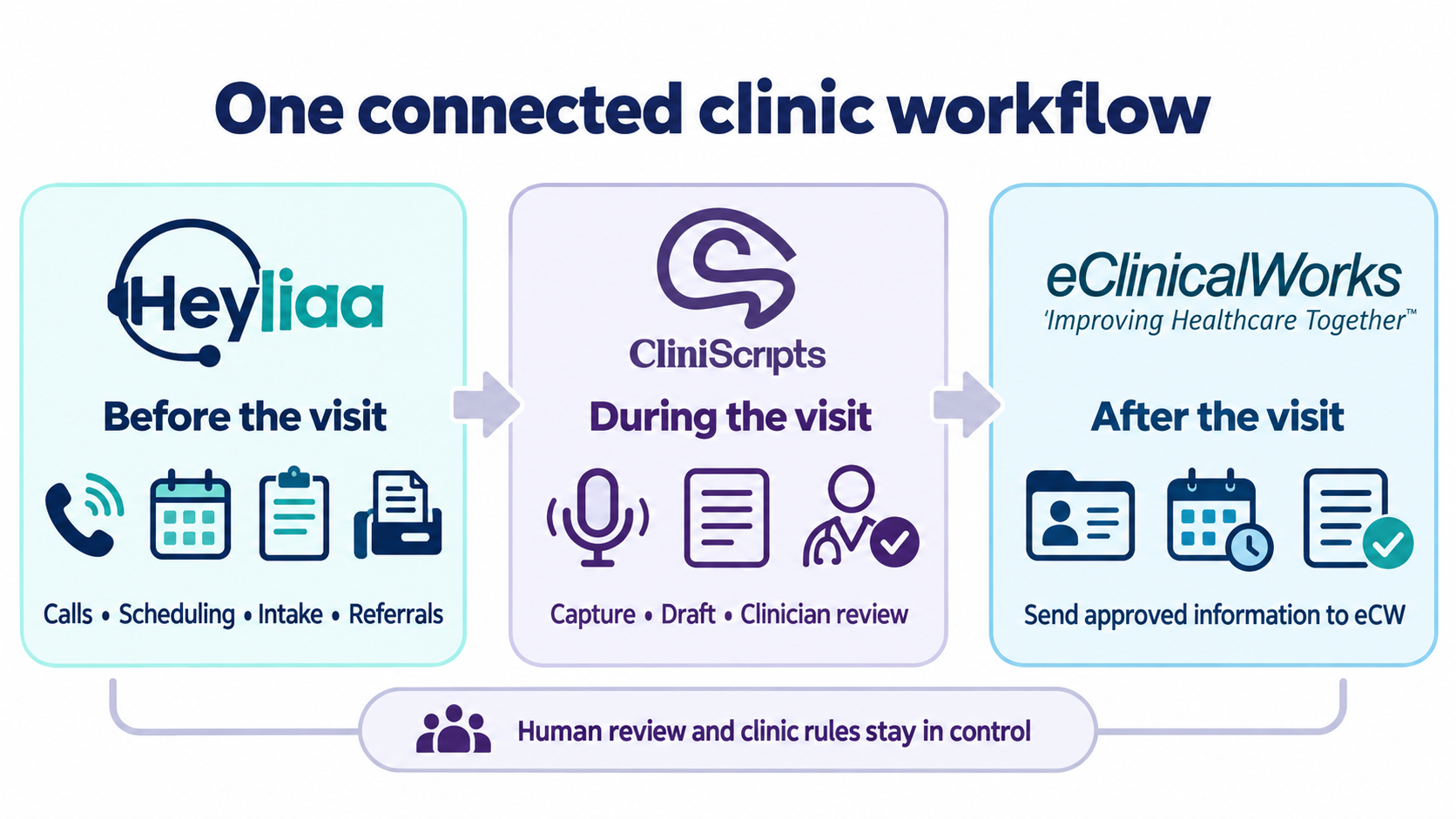
Before the visit: Heyliaa supports access and administration
Before a clinician enters the room, the practice may already have handled several interactions: a phone call, a booking request, an intake form, an insurance question, a referral or a fax.
Depending on the agents and integrations the clinic enables, Heyliaa can support workflows such as:
- answering routine calls during busy periods or after hours;
- handling appointment requests, rescheduling and cancellations using clinic-defined rules;
- collecting configured administrative intake information;
- sending or tracking required forms and reminders;
- classifying incoming faxes and referrals and routing them to the appropriate staff queue;
- escalating urgent, ambiguous, clinical or out-of-scope requests to a person; and
- recording an interaction summary or administrative outcome in the connected workflow where supported.
Heyliaa is an administrative workflow layer. It should not diagnose, determine medical urgency or make treatment decisions. The clinic defines the scripts, routing rules, escalation paths and circumstances in which a human takes over. Heyliaa safety and workflow overview
During the visit: CliniScripts supports documentation
When the patient encounter begins, the clinician can use CliniScripts as the documentation layer.
A typical connected workflow is:
- Open CliniScripts on the clinician’s computer or supported mobile device.
- Select the correct patient or appointment from the connected workflow.
- Start the recording after following the clinic’s consent policy.
- Focus on the patient while CliniScripts captures the encounter.
- Stop the recording and generate the selected note format.
- Review the draft, correct any errors and confirm that the note reflects the encounter.
- Send or transfer the approved documentation to the supported eCW destination.
CliniScripts can support structured documentation formats such as SOAP, DAP, BIRP and configurable templates. The exact template and destination fields should be confirmed during implementation. CliniScripts AI medical scribe
The clinician remains responsible for the final note. CliniScripts creates a draft; it does not replace professional judgment.
After the visit: approved information returns to the eCW workflow
Once the clinician has reviewed the note, the approved information can move into the matching eCW workflow using the integration method configured for the practice.
The implementation may support direct transfer, API-based exchange, a connected integration gateway, a browser-assisted workflow or another approved method. What can be written back—and where it lands—depends on the clinic’s eCW version, enabled interfaces, permissions and agreed field mapping.
The same principle applies to Heyliaa. A scheduling agent may update the appointment workflow. An intake agent may route completed information for staff review. A fax agent may place a document or summary in the correct queue. The configured integration determines what is automated, what is proposed and what requires human approval.
How CliniScripts works as an AI scribe for eClinicalWorks
CliniScripts is intended to reduce the documentation burden without changing how clinicians think or forcing every provider into one generic note.
1. Start with the schedule or patient context
When schedule synchronization is enabled, clinicians can view connected eCW appointments in the CliniScripts workflow and choose the current patient. If schedule sync is not part of the deployment, the clinic can use another supported selection or transfer method.
Before recording, the clinician should confirm:
- the patient identity;
- the appointment or encounter date;
- the intended note type; and
- the required consent or notification procedure.
2. Capture the encounter
The clinician starts the session and continues the visit normally. CliniScripts can capture live audio and can also support uploaded recordings in approved workflows. Supported mobile workflows may allow capture when internet access is unreliable and processing after connectivity returns. CliniScripts AI medical scribe
Recording laws, privacy requirements and organizational policies vary. Each practice remains responsible for determining the appropriate consent process and training its staff.
3. Generate the clinic’s preferred note
After the session, CliniScripts turns the encounter into a structured documentation draft. The practice can configure templates around its specialty, terminology and documentation requirements.
This is important because a family physician, behavioural health clinician, occupational therapist, speech-language pathologist and ABA clinician do not document the same way. The value is not merely transcription. It is producing a draft that follows the organization’s expected structure.
4. Review before anything becomes final
The clinician checks the draft for:
- clinical accuracy;
- missing or incorrect details;
- unsupported statements;
- patient identity and encounter match;
- template completeness; and
- appropriate wording for the medical record.
The final review should be treated as a clinical step, not a technical formality.
5. Send the approved note to eCW
After approval, the clinician uses the configured transfer or synchronization action. The implementation team should verify the exact eCW destination, whether the note arrives as structured content or document text and which steps remain inside eCW before signing.
Where Heyliaa agents fit around eCW
CliniScripts addresses the clinical note. Heyliaa addresses repeatable work around the note and the visit.
Not every clinic needs every agent. A smaller practice may begin with call answering and scheduling. A larger group may add intake, fax/referral routing, billing support, patient reactivation or a custom workflow.
AI Receptionist
The Receptionist Agent can answer routine calls, respond to approved frequently asked questions, recognize the caller’s administrative intent, route the request and transfer exceptions to staff. Where scheduling integration is enabled, the agent can support booking workflows without requiring the caller to wait for a callback.
Scheduling Agent
The Scheduling Agent can support booking, rescheduling and cancellation workflows according to provider availability, appointment types and clinic rules. Live eCW scheduling behavior must be validated before launch so the agent does not create duplicate, inappropriate or conflicting appointments.
Patient Intake Agent
The Intake Agent can guide patients through configured administrative questions and forms, check whether required information is complete and route the result to staff. Clinical screening and decision-making remain with qualified care-team members.
ARVO Fax and Referral Agent
The Fax and Referral Agent can classify incoming documents, extract relevant administrative information and route material toward the right provider or work queue. Time-sensitive, ambiguous or clinically significant content should follow the clinic’s approved escalation policy.
Billing and Claims Agent
The Billing Agent can support configured claim, payment and denial workflows. Because payer rules, coding practices and eCW billing configurations vary, staff should approve the scope, mappings and exception rules before production use.
Marketing and Patient Reactivation Agent
The Marketing Agent can support approved recall, recare, lapsed-patient and unbooked-lead workflows. Outreach should follow consent, communication-preference and marketing rules, with the clinic reviewing the audience, content and sending logic.
Intelligent EMR and Custom Agents
Some workflows do not fit a standard product category. Heyliaa’s Intelligent EMR and Custom Agent options can be configured around an organization’s approved processes, systems and handoff rules. Custom does not mean unrestricted: the same privacy, access, audit and human-approval requirements still apply.
What the integration should—and should not—do
A safe eCW deployment begins with a clear boundary between automation and authority.
| Workflow | AI-supported role | Human role |
|---|---|---|
| Patient calls | Answer routine questions, identify intent, route or transfer | Handle clinical concerns, ambiguity and exceptions |
| Scheduling | Apply configured booking rules and available integrations | Approve complex or non-standard bookings |
| Intake | Collect configured administrative information | Review clinical information and make care decisions |
| Fax and referrals | Classify, extract and route | Confirm urgency, clinical meaning and disposition |
| Clinical documentation | Create a structured draft | Review, edit, approve and sign |
| eCW write-back | Move approved data through supported mappings | Confirm the correct chart, encounter and final content |
| Billing support | Assist with configured workflows and exceptions | Validate coding, payer requirements and submissions |
AI should reduce repetitive work. It should not silently change the medical record, make independent clinical decisions or operate outside the clinic’s approved rules.
One-time setup: connect CliniScripts to eClinicalWorks
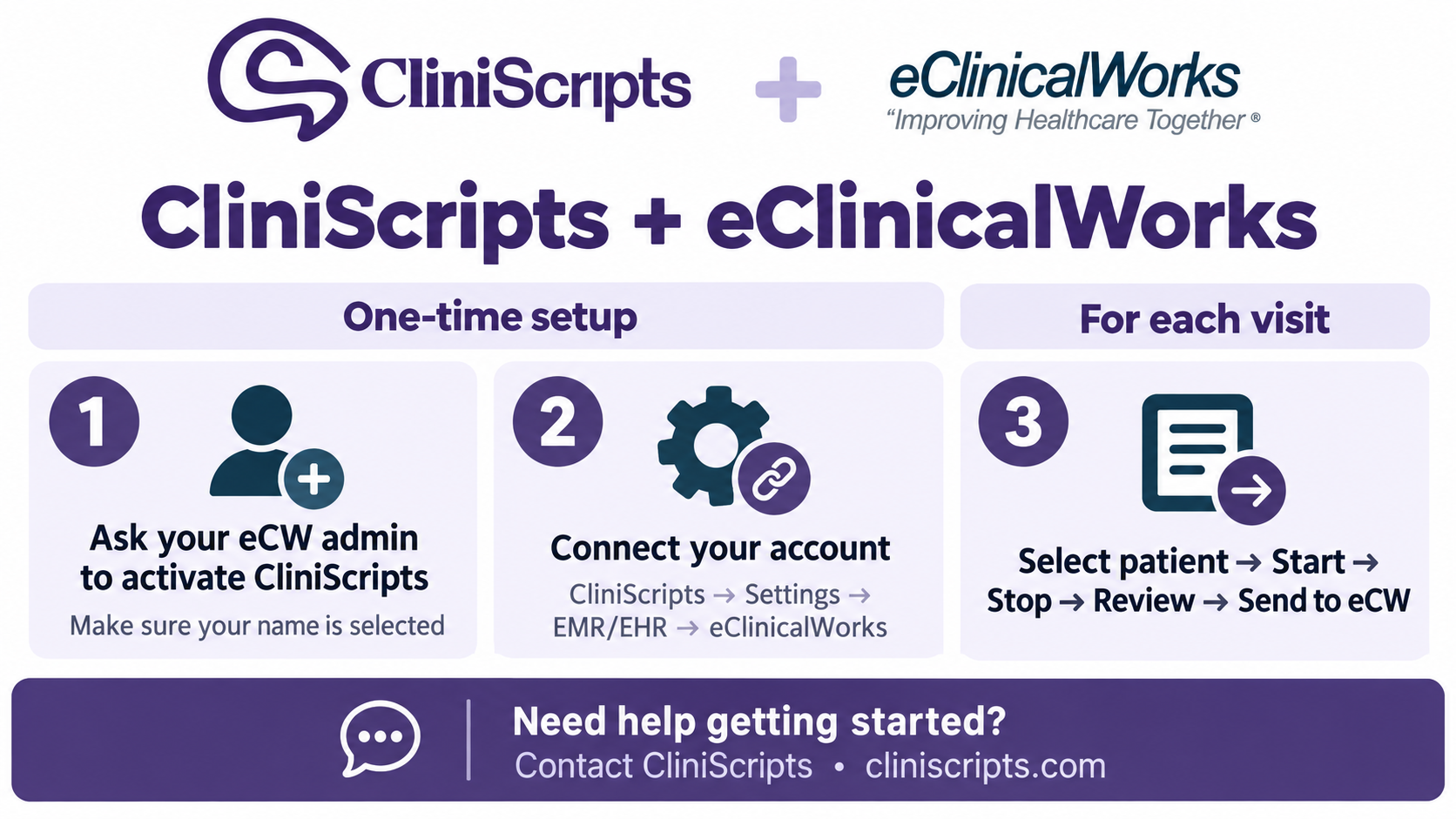
The exact labels can vary by eCW version and deployment, but a typical setup has three parts.
Step 1: eCW administrator activation
An authorized eCW administrator enables the application or approved integration pathway for the practice.
The typical navigation is:
Admin → Product Activation → FHIR APIs → Provider Centric Apps
The administrator then activates CliniScripts or the approved integration partner used for the deployment. Some implementations may use an integration gateway such as Keragon.
The most important step is provider-level configuration. After practice-level activation, the administrator should open App Configuration and select each clinician who needs access. Activating the app without enabling the individual provider can result in an “app not enabled” or similar authorization error.
Because eCW configurations differ, the CliniScripts implementation team should confirm the correct app name, permissions and activation process for the organization before changes are made.
Step 2: clinician authentication
After the administrator enables access, the clinician connects the accounts:
- Sign in to CliniScripts.
- Open Account Settings.
- Go to the EMR/EHR selection.
- Choose eClinicalWorks.
- Complete the secure sign-in and authorization flow.
Credentials should be entered only into the approved authentication window. Staff should not share passwords with implementation personnel.
Step 3: validation before live use
Before using the integration with real encounters, run a controlled validation:
- Confirm that the correct clinician can sign in.
- Confirm that the expected appointment or patient context is visible when schedule sync is enabled.
- Create a test note using approved non-production or test data.
- Review the full note in CliniScripts.
- Send it through the configured pathway.
- Confirm that it reaches the correct eCW chart, encounter and field.
- Confirm what the clinician must still do inside eCW to finalize or sign the record.
Repeat the test for each provider role and note type included in the rollout.
A practical daily workflow for clinicians
The daily experience should remain simple:
- Select the patient. Confirm that the patient and encounter are correct.
- Start. Begin capture after following the clinic’s consent process.
- Stop. End capture when the relevant encounter is complete.
- Review. Correct the draft and confirm clinical accuracy.
- Send to eCW. Transfer the approved note through the configured workflow.
- Finalize in eCW. Complete any remaining review, attestation or signature required by the organization.
The goal is fewer manual steps, not less accountability.
Security, privacy and governance
Technology alone does not make a workflow compliant. Compliance depends on the product safeguards, the contract, the deployment and how the practice uses the system.
CliniScripts states that it supports HIPAA-, PHIPA- and PIPEDA-aware clinical workflows, with clinician approval before notes become final. Its privacy policy also makes clear that healthcare organizations remain responsible for appropriate consent and legal authority when recording or processing patient information. CliniScripts privacy policy
Heyliaa states that patient data is encrypted in transit and at rest and that its platform supports access controls, audit logging and healthcare privacy requirements. Its public site also emphasizes clinic-defined rules and human escalation for clinical or ambiguous requests. Heyliaa security
Before launch, every organization should confirm:
- the business associate or data-processing agreements required for its jurisdiction;
- permitted data flows between Heyliaa, CliniScripts, eCW and any integration partner;
- identity and role-based access controls;
- consent and recording procedures;
- data residency and retention requirements;
- audit-log access and monitoring responsibilities;
- downtime and incident-response procedures; and
- who approves notes, routing rules, outreach and workflow changes.
A phased rollout that reduces risk
The safest implementation is narrow enough to validate and broad enough to measure.
Phase 1: choose one location, provider group and workflow
Start with a small group of clinicians and one or two high-friction workflows. Examples include clinical note drafting, after-hours calls or appointment requests.
Phase 2: map the current process
Document what happens today, including every handoff, queue, approval and exception. Integration should improve the real process, not automate an imagined one.
Phase 3: configure and test
Enable provider access, map data destinations, configure templates and rules and test ordinary and exception scenarios.
Phase 4: train by role
Clinicians need to know how to select, capture, review and send. Front-desk staff need to know when Heyliaa acts, when it escalates and where summaries appear. Administrators need to know how to grant, remove and audit access.
Phase 5: measure the workflow
Use operational measures the clinic can verify, such as:
- time from encounter end to signed note;
- percentage of notes reviewed and signed on time;
- after-hours calls answered;
- appointment requests completed or escalated;
- intake items complete before the visit;
- fax and referral routing turnaround;
- staff corrections by workflow type; and
- exception and escalation rates.
Do not publish savings or outcome claims until the clinic has validated the measurement method and approved the results.
Frequently asked questions
Does CliniScripts replace eClinicalWorks?
No. CliniScripts can work alongside eCW as a clinical documentation and workflow layer. eCW remains the clinic’s system of record according to the organization’s implementation.
What is the difference between CliniScripts and Heyliaa?
CliniScripts supports clinical documentation and connected practice workflows. Heyliaa is the AI-agent layer for repeatable administrative work such as calls, scheduling, intake, fax/referral routing and other configured processes.
Can CliniScripts send notes to eCW?
CliniScripts supports eCW integration workflows. The exact transfer method, destination fields and level of automation depend on the eCW environment, enabled interfaces, permissions and deployment scope.
Can Heyliaa book appointments in eCW?
Heyliaa can support connected scheduling workflows where the required eCW integration, clinic rules and permissions are configured. The workflow should be tested for appointment types, provider availability, conflicts and exceptions before launch.
Does Heyliaa answer clinical questions?
Heyliaa is designed for administrative workflows. Clinical, urgent, ambiguous and out-of-scope requests should be escalated to a qualified person under clinic-defined rules.
Does the clinician still review the note?
Yes. CliniScripts produces a documentation draft. The clinician reviews, corrects and approves it before it becomes part of the final record.
Why does each eCW provider need to be enabled separately?
Practice-level app activation may not automatically give every clinician access. Provider-level configuration allows the organization to grant access only to authorized users. If a clinician sees an “app not enabled” message, the eCW administrator should check the provider list in App Configuration.
How long does implementation take?
Timing depends on the number of providers, workflows, systems, permissions, templates and integration method. A focused pilot can move faster than a multi-location rollout with multiple agents and custom mappings.
Build around the system your clinic already uses
The best eClinicalWorks integration is not the one with the longest feature list. It is the one that removes specific repetitive work, sends information to the correct place and makes the human handoffs clearer.
CliniScripts and Heyliaa are designed around that practical model:
- Heyliaa supports the administrative work that brings the patient and information to the visit.
- CliniScripts supports the clinical documentation created during the visit.
- eCW remains the connected record where the clinic manages and finalizes its work.
To review your eClinicalWorks environment and identify the right starting workflow, contact CliniScripts or email sales@cliniscripts.com.





 All Rights Reserved